 Sign in
 youngmale<3
yesterday
0
im bout to be 18 ladies hmu

The cursor library contains both standalone cursors and cursor sets. A cursor set contains multiple cursors with a similar style.
You can download either the entire cursor set, or individual cursor files. To download a cursor set, click on the button that shows the ZIP folder's filename. To download an individual cursor, click on it's panel and click the download link(s) in the cursor's details page, or click on the download icon that appears when you hover over a cursor's panel.
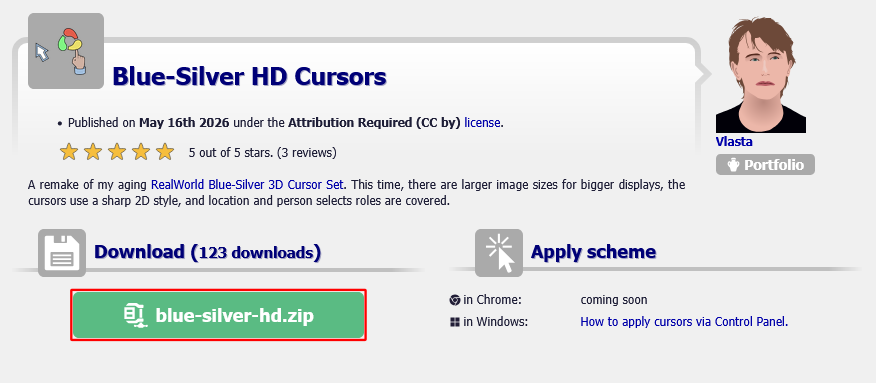
If you are having trouble downloading cursors, right-click on the download link and choose "Save link as" from context menu.
Cursors within downloaded cursor sets are stored in a zipped archive and you will need to extract individual cursors before you can use them. To do this, right-click the zip archive and click on 'Extract All...'. Then click on Extract in the prompt window.
Changing cursor is not as simple as double-clicking it. Operating systems use different cursors in different situations. The method of changing your cursor can vary depending on what OS and version you use.
RW-designer offers a browser extension that allows you to change your Normal Select, Link Select, and Text Select cursors. It directly integrates with the cursor library, allowing you to easily set a cursor right from a set/cursor's page without a required download. This can be useful if you are not using Windows.
RealWorld Cursors is available for both Chrome and Firefox browsers. For info about how to use it, see this page.
First, make sure, you have already downloaded the cursor to your computer as described above and you know in which folder the cursor file is.
Follow these steps (assuming you have Windows XP or newer):
If you are using Windows Vista or up, you can just search for main.cpl in the Start Menu and hit Enter. You can omit the Location Select and Person Select cursors if you are not using Windows 10 19H1 or higher.
 Double click the Mouse icon to display Mouse Properties and then switch to Pointers tab. | 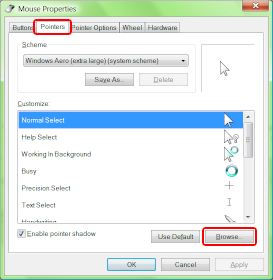 Select a pointer role to replace, click on Browse, and navigate to your downloaded cursor. |
When changing pointers, you can see a preview of the frames of a cursor. Be aware that the preview is not accurate, it does not respect frame duration and sequence.
Cursors are sometimes associated with malware. Here is a guide how to protect yourself from a cursor virus.
Logged-in users can create their own cursors and upload them using RealWorld Cursor Editor. Created cursors can also be uploaded via the Upload new cursor page, which allows bulk uploading and info editing.
 Recent commentsyoungmale<3
yesterday
0
im bout to be 18 ladies hmu
jayjay
yesterday
0
nobodys hitting u up son
banana
yesterday
0
banana]
My name
about 24 hours ago
0
I ain't reading allat
akito
about 24 hours ago
0
you guys are just dumb asf it worked for me just pay attention
LOC
about 17 hours ago
0
oi pessoas desconecidas
😉
Natsya
about 16 hours ago
0
Thanks man 😉
tabs
about 14 hours ago
0
NOBODY hitting yo ass up bro
Pickle
about 3 hours ago
0
Greeting fellow humans
pickle
about 2 hours ago
0
its not workingn when i click brows😠